Cloud & Web
Cloud Library
Back up your library, free up disk space, and share with others.
Updated
Cloud Library backs up your files and database and frees local disk space.
Signing in
Click Sign In (from the Account page or the welcome wizard). Your browser opens to complete sign-in; the app picks it up automatically and you’re done. Cloud plans come in 500 GB, 1 TB, 2 TB, and 4 TB sizes — current pricing is on the pricing page. If you need more contact support and we’ll add more…somehow.
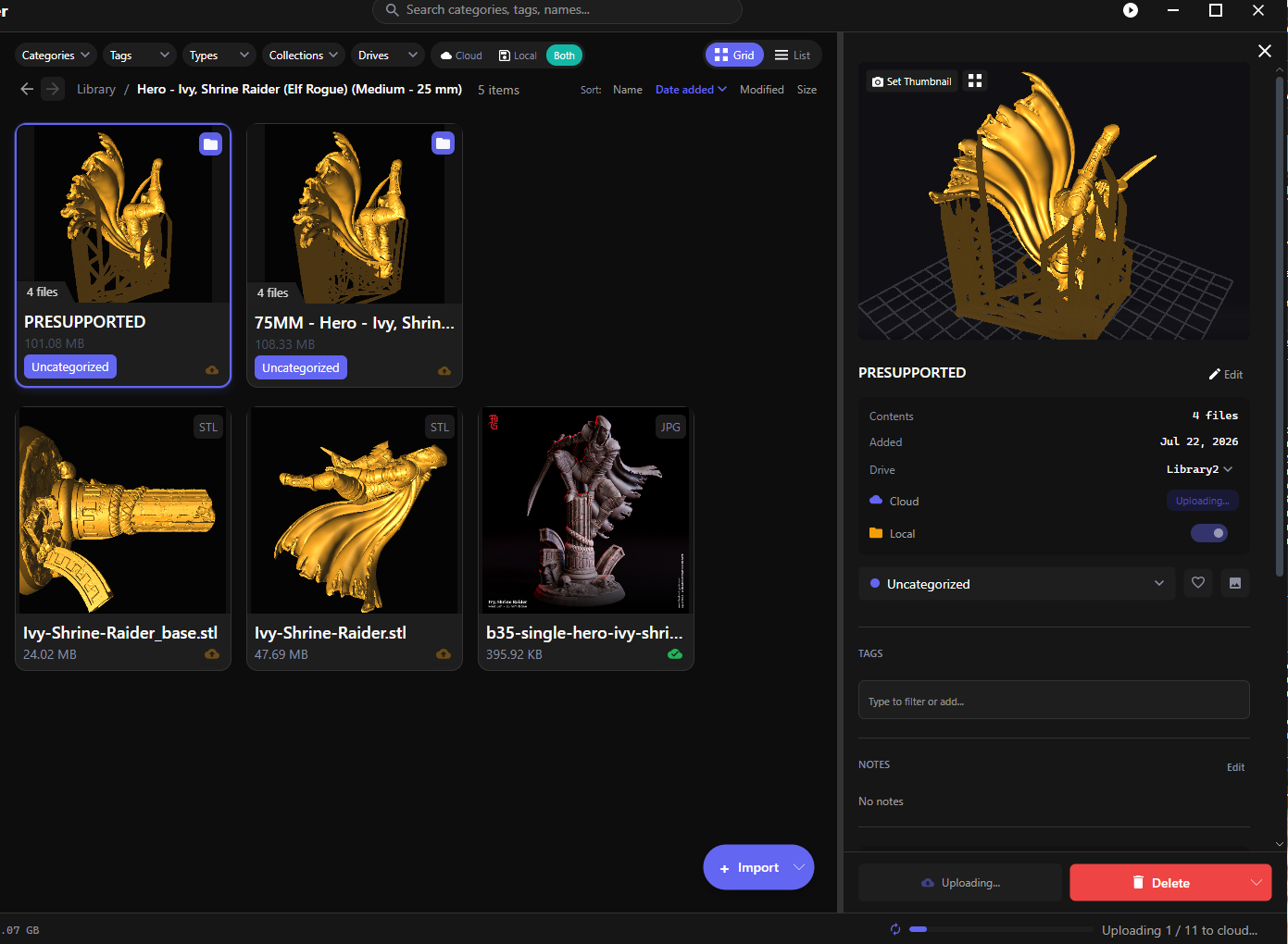
Cloud and Local — per item
Every item’s detail panel has two toggles:
- Cloud — on = synced to the cloud, off = removed from the cloud
- Local — on = a copy on your disk, off = cloud-only (freeing local space)
So an item can be local-only, cloud-only, or both. Cloud-only items stay visible in your library with their thumbnails — hit Download to bring one back. While an operation runs you’ll see its status (Uploading… / Downloading… / Removing…).
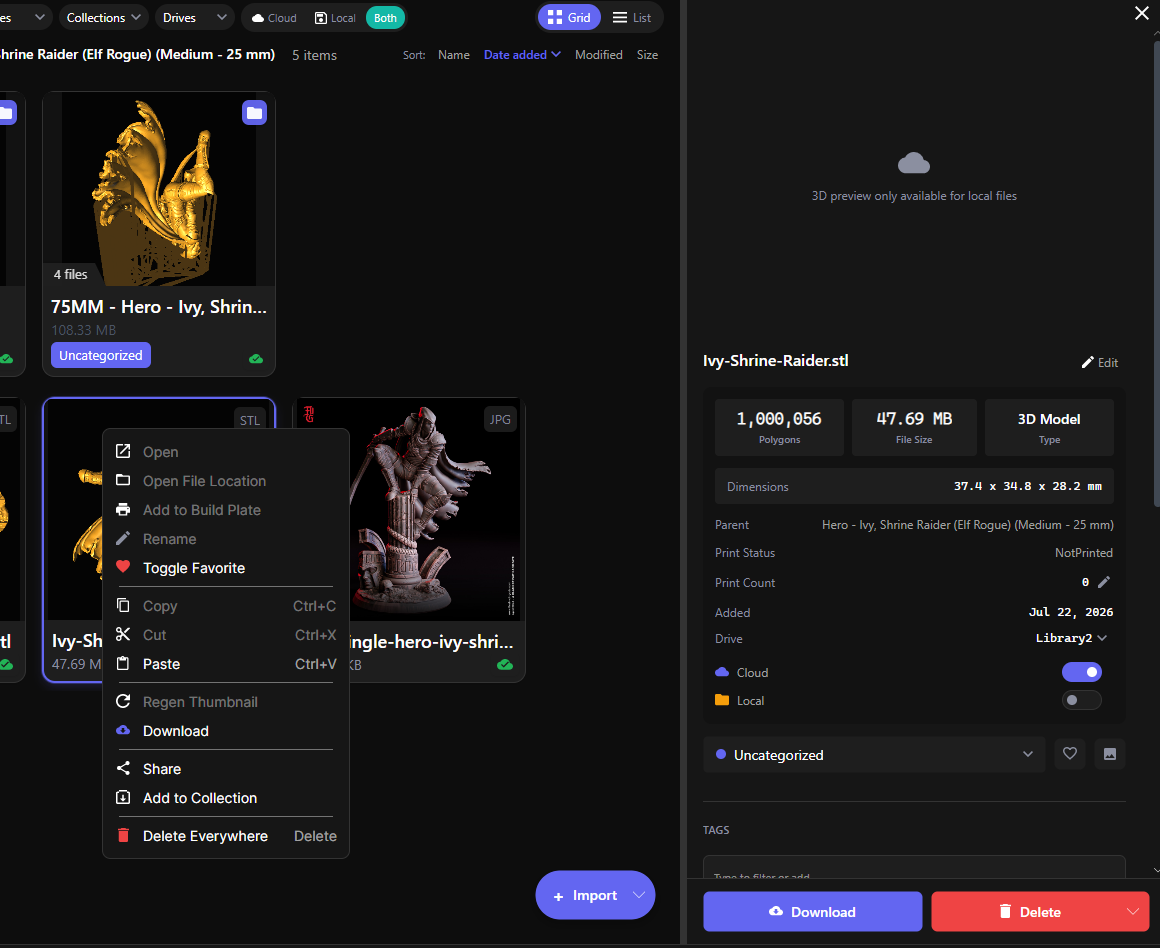
You can also right-click items for Upload to Cloud / Download, or set everything up front with the Import dialog’s Upload to cloud library option.
Deleting with cloud in the picture
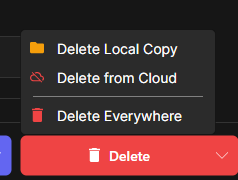
The delete menu spells out exactly what goes:
- Delete Local Copy — keep it in the cloud, free the disk space
- Delete from Cloud — keep it local, remove the cloud copy
- Delete Everywhere — gone from both
Sync behavior
Sync runs continuously in the background (changes upload within about half a minute). The library toolbar’s Cloud / Local / Both filter shows where things live at a glance. As you approach your storage limit you’ll get warnings (“Approaching storage limit” → “Storage almost full”), and at 100% syncing pauses until you free space or upsize.

Your library database is backed up to the cloud automatically too — Settings → Cloud Storage shows the last backup and last full sync times.
If uploads hog your connection, cap them: Settings → Cloud Storage → Bandwidth lets you limit upload and download rates (KB/s) or leave them unlimited.
Multiple machines
Sign in on another machine and choose Restore from Cloud during setup to pull your library down. Cloud-only items sync as entries you can download on demand.
But this should be treated as a workstation migration. You should avoid using the same library across multiple machines and I have warnings that pop when you try to do that to protect you and resolve situations that arise from trying that, you could overwrite the database and make the workstations out of sync then they compete to see who can upload their database to the cloud to see who the owner of the “real db” is.
One day I hope to support multi-workstation a little easier, but the demand for that at the moment is low, so it’ll likely be a minute unless demand grows!