Library
Library Utilities
Search, filters, selection, the right-click menu, and collections.
Updated
Search
The search bar matches names, notes, creator names, categories, tags — and file names inside folders. Type and go.
If generic folder names (like “stl” or “supported”) clutter your results, Settings → Storage → Generic Folder Blacklist hides them when they only match indirectly — folders still show if their name directly matches what you typed.
Filters and sorting
Filter dropdowns in the toolbar, all stackable:
- Categories, Tags, File types, Collections
- Drive (only when you have multiple drives)
- Cloud / Local / Both location toggle (when cloud sync is on)
Clear everything with the ✕ Clear all filters button. Sort by Name, Date added, Modified, or Size (click again to flip direction), and switch between Grid and List views top-right.

Selecting things
- Click selects; Ctrl+click toggles; Shift+click selects a range
- Drag on empty space for box selection
- Ctrl+A selects everything; Escape clears
- With multiple items selected, a bulk toolbar appears: copy/cut/paste, category, regenerate thumbnails, share, collections, and delete for the whole selection
The right-click menu
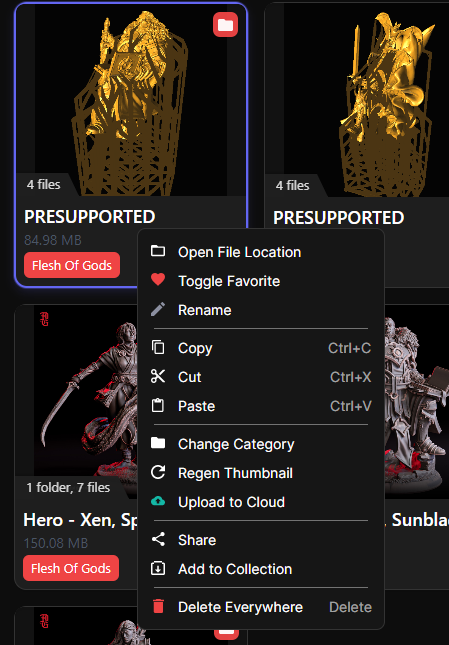
Right-click is the fastest route to almost everything. On a folder:
- Open File Location — jump to it in File Explorer
- Toggle Favorite, Rename
- Copy / Cut / Paste — paste moves (cut) or duplicates (copy) into the folder you’re viewing
- Change Category, Regen Thumbnail
- Upload to Cloud / Download — depending on where the item currently lives
- Share, Add to Collection
- Delete Local Copy / Delete from Cloud / Delete Everywhere — the delete options match the item’s cloud state, so you always know exactly what’s being removed
Files add a couple more: Open (in the default app) and Add to Build Plate for printable files. Right-clicking empty space gives you New Folder and Paste.
Library stats
The status bar along the bottom keeps a running count: folders, files, and total storage used.
