Getting Started
Library view
Folders, favorites, notes, and the detail panel.
Updated
Folders
Your library is built from folders — double-click one to drill in, and use the breadcrumb bar at the top to jump back out. The library mirrors a real folder on disk.
Creating, renaming, and moving
- New folder — right-click empty space in the library and choose New Folder.
- Rename — right-click an item → Rename.
- Move — cut and paste: right-click → Cut, navigate where you want it, right-click → Paste. (Copy/paste duplicates instead.) You can also drag files and folders into each other, and onto the bread crumbs to move them around. Or use Ctrl+X/Crtl+V.
The full right-click menu is covered in Library Utilities.
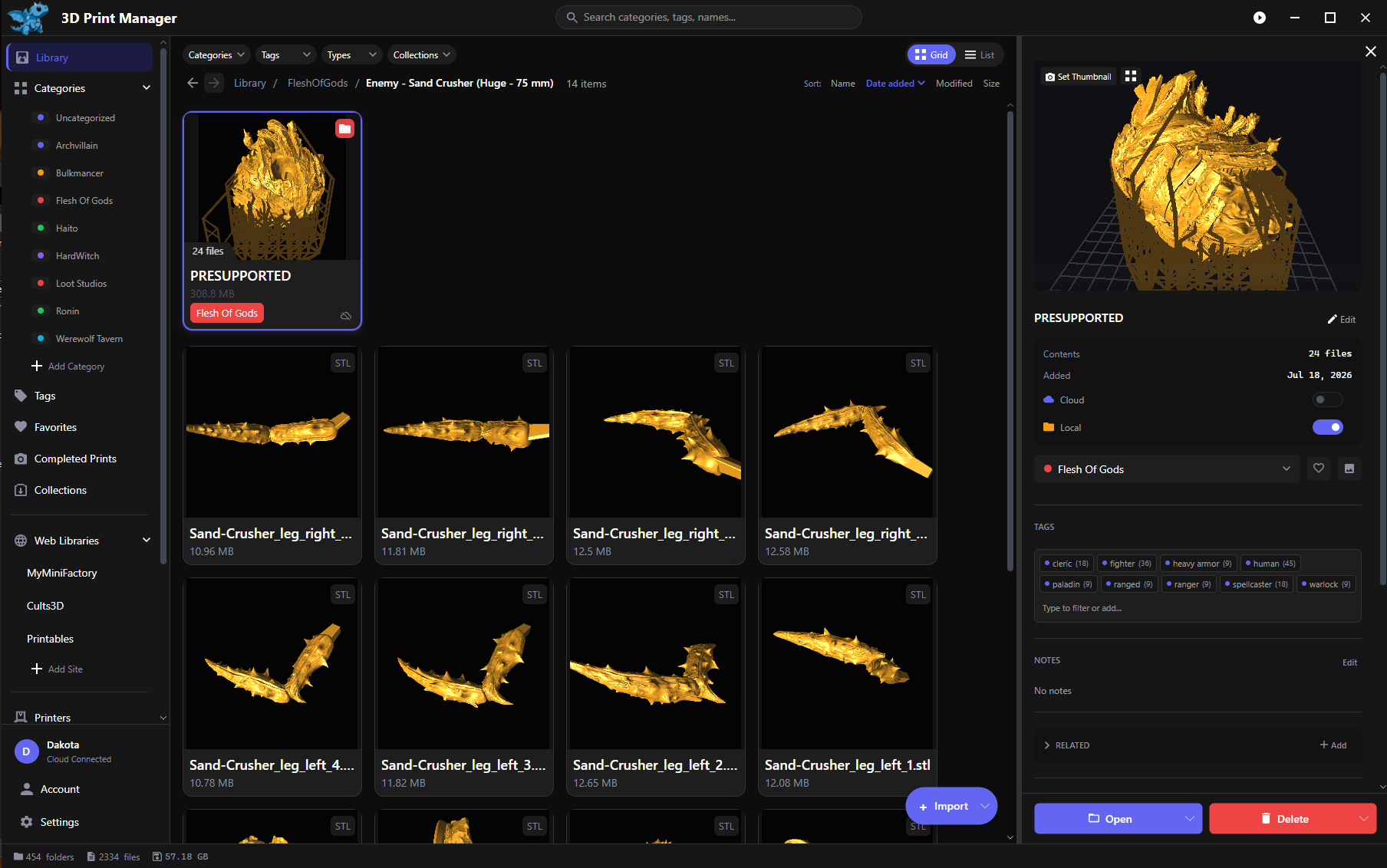
The detail panel
Select any item and the detail panel opens on the right. It’s home to:
- Heart on any card to favorite it — the Favorites entry in the sidebar collects them all.
- Notes — free-form text field for anything you’d like
- Tags and category — see Categories and Tags
- Related — link connected items together (File Relationships, Pro)
- Collections — Any collections the file is apart of
- Sources — Where the file was downloaded from, auto populated if downloaded from the web library
- Shares — Cloud feature showing if what shares have been created that include this file
- Build Plates — List of the build plate the file is currently on
- Print Photos — your print photo history for this item
Each section is collapsible, and you can hide the ones you don’t use in Settings.