Library
File Relationships
Link related models and files across your library (Pro).
Updated
Some things belong together even when they live in different folders: the supported and unsupported versions of a model, a bust and its full-body variant, a base and the mini that stands on it. Related links let you hop between them without hunting.
Related files is a Pro feature
Linking items
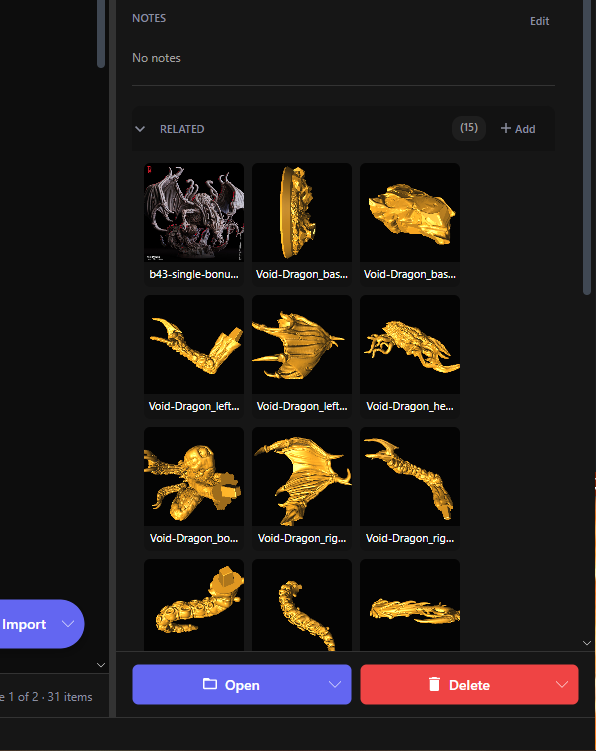
- Select an item and find the Related section in the detail panel.
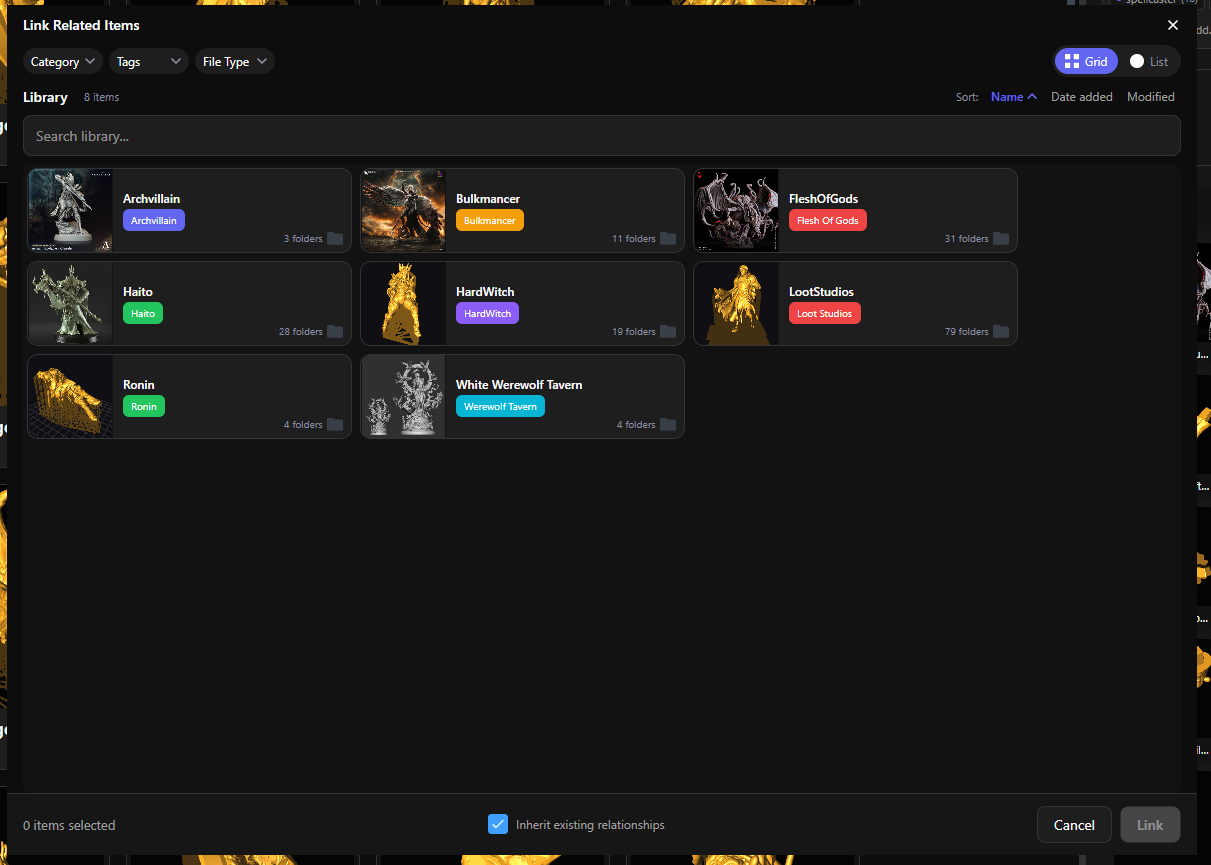
- Click Add — the Link Related Items browser opens.
- Pick one or more items and click Link.
Linked items appear as thumbnail cards in the Related section. Click a card to jump to that item; hover and click the × to remove a link.
Inheriting relationships
The link dialog has a checkbox: Inherit existing relationships. With it on, new links join the whole circle — if A is already related to B and C, linking D to A also links D to B and C (one layer deep, duplicates skipped automatically).
That’s handy when a group of variants all belong together: link each new one to any member and the circle stays complete.
The default for that checkbox lives in Settings → Organization → Related Items (“Inherit existing relationships when linking”), and you can flip it per-link in the dialog.