Library
3D Previews
Rotate, zoom, and inspect models in the interactive viewer.
Updated
Where you’ll see 3D
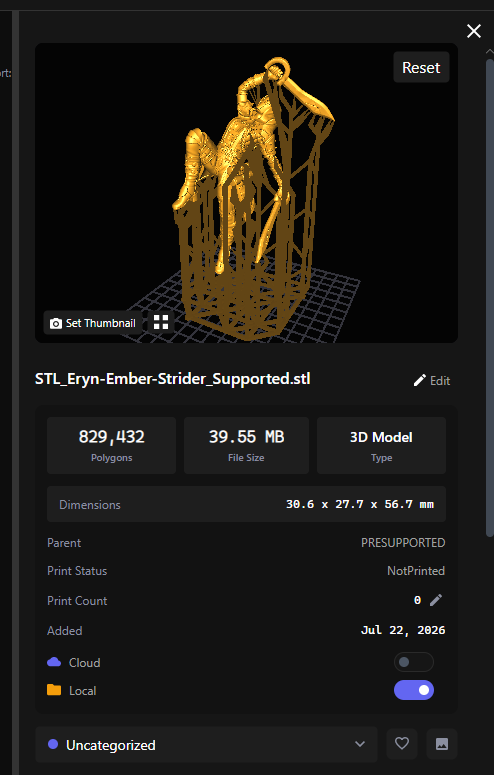
- The detail panel — select a supported 3D file and the interactive viewer loads it.
- Hover previews — hover a model card and a live animated preview pops up.
- Build plates — the plate layout has its own 3D arrangement view (see Build Plates).
Controls
- Hold Right Click + Drag — rotate
- Hold Right Click + Scroll — zoom
- Reset button — snap the camera back to auto-fit
- Grid toggle — show/hide the floor grid
- Set Thumbnail — capture the current angle as the item’s thumbnail
- Double-click the preview to open the file in its default external app
Troubleshooting: black or broken previews
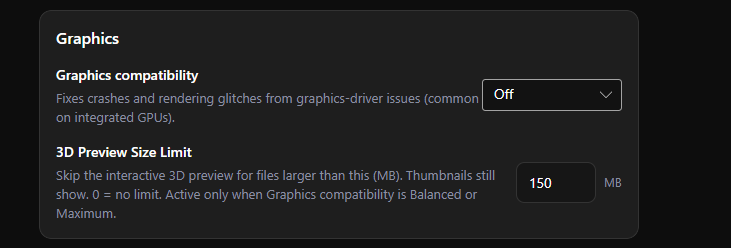
Rendering glitches and crashes are almost always graphics-driver related (integrated GPUs especially). Head to Settings → Advanced → Graphics compatibility:
- Off — full quality; best for dedicated GPUs
- Balanced — turns off anti-aliasing; near-zero impact and the default for integrated graphics
- Maximum — software rendering that bypasses the driver entirely; most stable, but live 3D previews are replaced by static thumbnails
Changing it prompts a restart (“Restart the app to apply this graphics change”). If previews render black or the app crashes when viewing models, step up to Balanced, then Maximum. Updating your graphics drivers is also a great idea to help resolve issues!