Files on Disk
File Watcher & File Explorer
The app watches your library folder — changes on disk sync automatically.
Updated
Your library is a real folder on disk, and the app keeps constant watch over it. You never have to use the app to manage files.
While the app is running
- Add a file or folder → it’s imported automatically, thumbnails and all
- Delete something → it leaves the library
- Rename or move something → the library record follows it, keeping its tags, notes, category, thumbnail, and cloud status intact
Drop an archive into the library and (with Unarchive imported zip files enabled in Settings → Import) it’s extracted and imported as a folder, with the archive cleaned up afterwards.
While the app is closed
On every launch the app scans each library drive for anything that changed while it was off. You’ll see the progress on the loading screen (“Checking drive for changes…”) and, if the scan outlasts the splash, a small pill in the corner — it never blocks you from working. When the scan finds new files, an Importing Detected Files progress dialog shows what’s coming in.
Safety net
If a scan finds a huge share of your files suddenly “missing” — the classic sign of a drive that didn’t finish mounting — the app refuses to touch anything rather than mass-deleting your records.
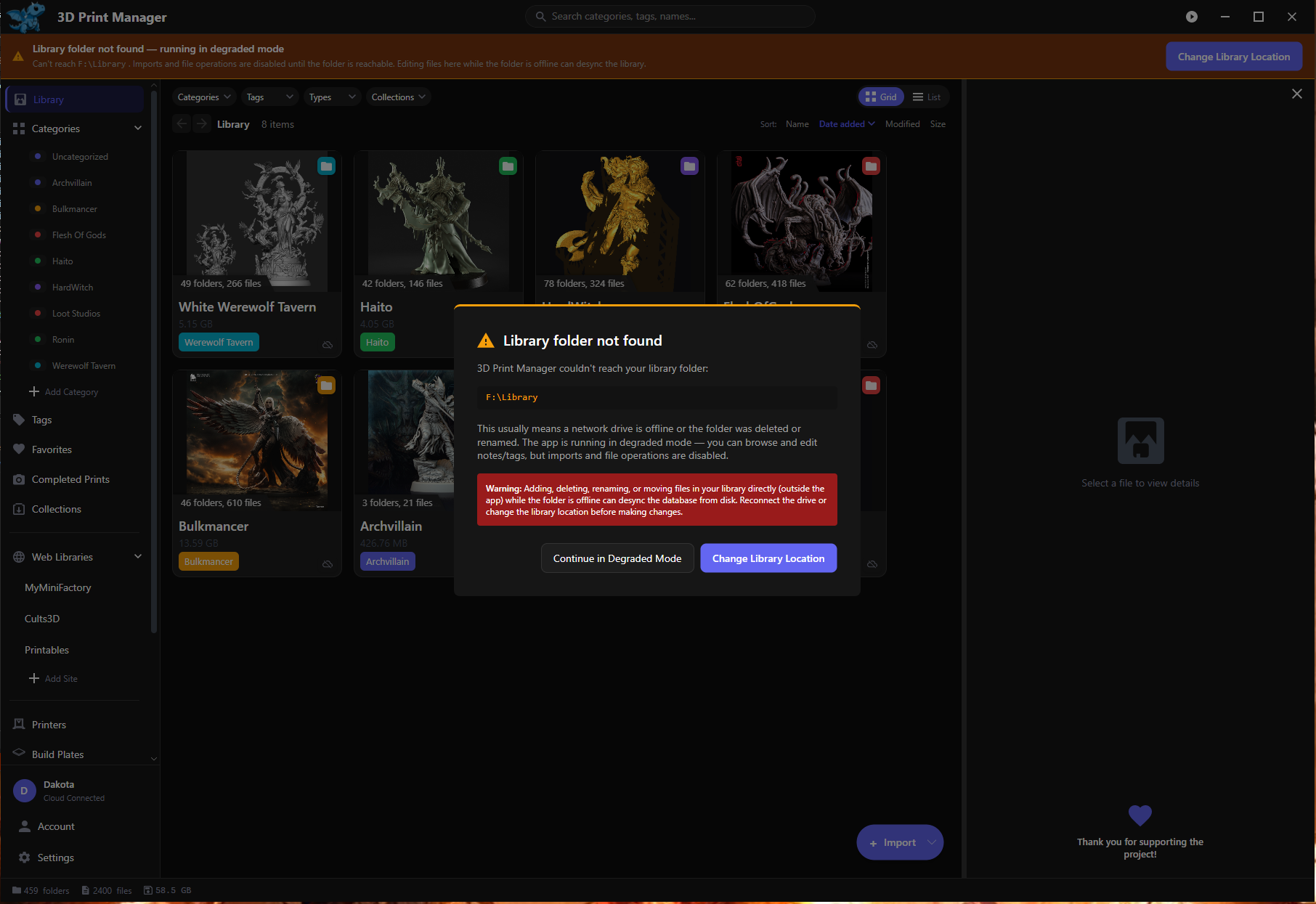
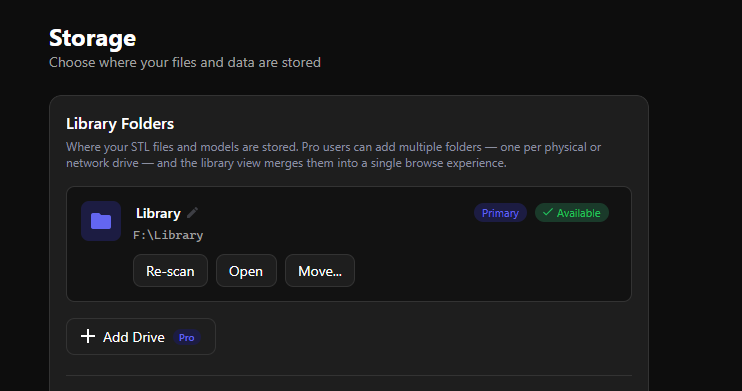
Once the drive is properly back, Settings → Storage → Re-scan brings everything in sync (re-scan double-checks every file individually and never deletes files on disk).
Network drives and NAS
Library folders on network shares work, with two things to know:
- Network volumes that sleep or briefly drop can interrupt watching — the app reconnects automatically (it retries every 30 seconds).
- Startup scans over a big NAS library can take a few minutes; the status line is there so you know it’s working, not hung.
For libraries across several physical drives, see Multiple Drives.