Troubleshooting
Crashes
What happens after a crash, what reports contain, and how to stop repeat crashes.
Updated
The report dialog
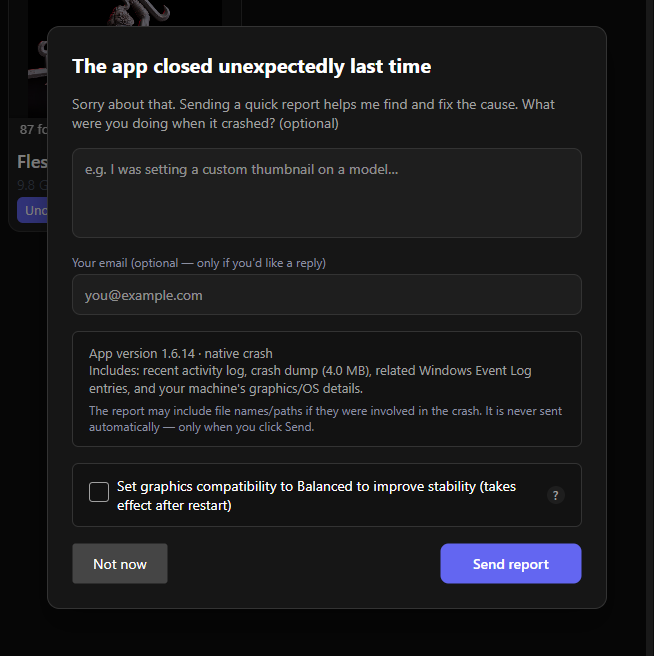
After a crash, the next launch shows “The app closed unexpectedly last time”. If you can spare 30 seconds:
- Tell me what you were doing when it crashed (optional but hugely helpful)
- Leave your email if you’d like a reply (also optional)
- Click Send report
Nothing is ever sent automatically — only when you click Send. The report contains technical crash data (a crash dump, recent activity log, related Windows Event Log entries, and your machine’s graphics/OS details). File names or paths may appear if they were involved in the crash; your actual model files are never included.
Graphics-driver crashes (the most common kind)
The single most common crash class is a GPU driver fault that happens while the app is handing a rendered frame to the driver — a native crash deep inside the graphics stack, not something the app can catch and recover from gracefully. It’s most common on integrated Intel GPUs with old drivers, but can affect AMD integrated graphics too.
The definitive fix: set Graphics compatibility to Maximum
Go to Settings → Advanced → Graphics compatibility and change it to Maximum, then restart when prompted.
Here’s why the choice of level matters:
- Balanced turns off anti-aliasing on 3D viewports and eases thumbnail rendering pressure. It lowers the odds of a crash, but it still renders through the GPU driver — so it reduces crash probability rather than eliminating the faulting path.
- Maximum forces the app’s UI compositor to software rendering, bypassing the vendor GPU driver entirely. This is the actual fix for that crash family. If you’ve had one of these crashes, Maximum is the level to choose.
What you give up at Maximum: the interactive 3D previews (hover previews, the detail-panel viewer, the build-plate 3D arrangement) render blank and fall back to static thumbnails. Everything else — the library, imports, search, cloud sync, sharing, printing — works exactly as before. Thumbnails themselves keep working too, since they’re generated by a separate background process with its own GPU pipeline that isn’t affected by this setting.
Update your graphics driver
After setting Maximum to stop the crashes, updating your GPU driver is the next step. Integrated Intel and AMD drivers are distributed through Windows Update (check Optional updates in Windows Update settings) and the vendor’s own software (Intel Graphics Command Center / Intel Arc Control for Intel; AMD Software: Adrenalin Edition for AMD). Once your driver is up to date, you can try stepping back down to Balanced to regain live 3D — if the crashes don’t return, you’re in good shape.
Automatic protection on repeat crashes
If the app crashes more than once in a row, it starts defending itself. The report dialog offers (or, for driver-style crashes, automatically applies) a compatibility level change — you’ll see a banner like “Graphics compatibility has been set to Balanced to help prevent further crashes.” That’s a starting point; if crashes continue, step it up to Maximum yourself as described above.
Helping me help you
For a stubborn or hard-to-reproduce issue:
- Settings → Advanced → turn on Verbose Logging (“log everything, not just warnings and errors”)
- Reproduce the problem
- Settings → Advanced → Log Files → Open Folder, grab the latest
my3dprintmanager-*.log - Send it to support(me!) with a note about what you were doing
Logs rotate daily and are kept for 3 days, so grab them soon after the incident.