Library
Multiple Drives
Spread your library across more than one drive (Pro).
Updated
Libraries outgrow drives. With multiple library folders (a Pro feature), you can keep your library spread across internal drives, externals, and network shares — and browse it all as one merged library.
Adding a drive
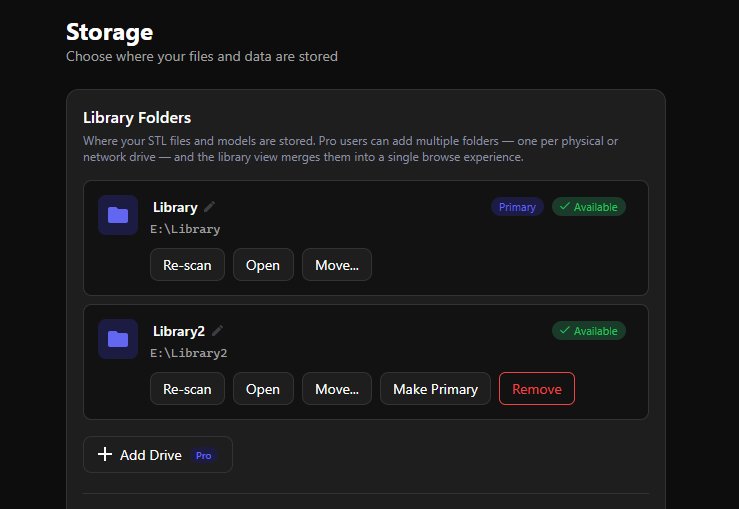
Settings → Storage → Add Drive. Pick a folder on the new drive; any 3D files already in it get imported. Each drive gets a display name (click it to rename) and shows an Available or Unavailable badge.
One drive is always marked Primary — that’s the default destination for new imports. Make Primary on any other drive changes the default without moving any files.
Browsing a multi-drive library
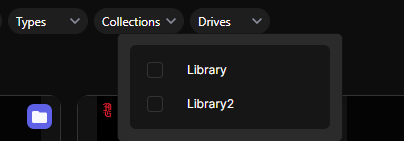
The library view merges everything: same-named folders across drives appear as a single card, and drilling in shows the combined contents. When you have two or more drives, a drive filter appears in the library toolbar to narrow the view to one drive, and the Import dialog gets a drive selector for choosing where new files land. New folders created in the library use the drive marked as primary in the settings page.
Moving items between drives
The detail panel displays the drive the file or folder is on, and you can use it as a drop down menu to switch which drive its on — pick the destination drive, and the app copies the files across and updates everything: paths, thumbnails, and cloud status. If an item keeps the same relative path on the new drive, its cloud copy doesn’t need re-uploading.
One rule to know: the same relative path can’t exist on two drives at once (e.g. Dragon/body.stl can only live on one). If a move or import would collide, a duplicates dialog pops up and walks you through resolving each conflict.
When a drive is unplugged
Nothing breaks. The drive shows Unavailable in Settings, its items show as offline in the library, and the app checks for its return automatically. From the drive’s row you can:
- Retry — re-check whether it’s reachable
- Re-point… — if the drive came back under a different path/letter, point the library at the new location
- Re-scan — reconcile the drive’s records with what’s on disk (it never deletes files on disk)
Removing a drive
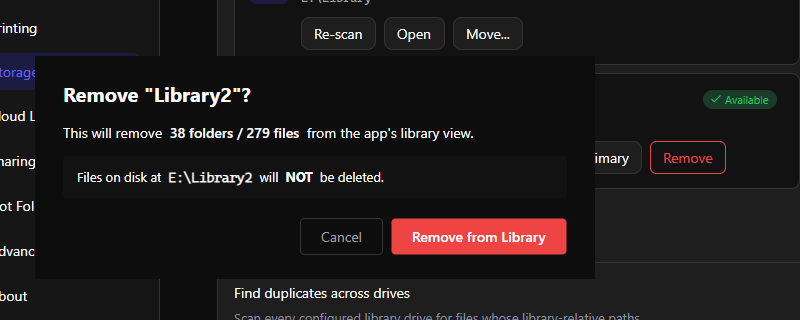
Remove takes the drive out of your library view — files on disk are not deleted. If any of its files are cloud-synced, they’re queued for cloud deletion, so switch anything you want to keep in the cloud to Local-only first