Library
Thumbnails
How previews are generated, and how to customize them.
Updated
How thumbnails are generated
After import, the app renders 3D previews in the background — you’ll see a shimmer placeholder with an hourglass while each one is queued, and the image fades in when it’s ready. You can keep using the app the whole time; big models just take a little longer.
What gets a preview:
- STL, OBJ, 3MF — a rendered 3D turntable snapshot
- Images (PNG, JPG, WebP, SVG…) — the image itself
- PDFs — the first page
- LYS files — borrow the preview from a matching STL next to them or in a parent folder
- Archives and other file types show a type icon instead
- Clicking an image or PDF thumbnail opens it full-size in the lightbox viewer (PDFs are pageable there).
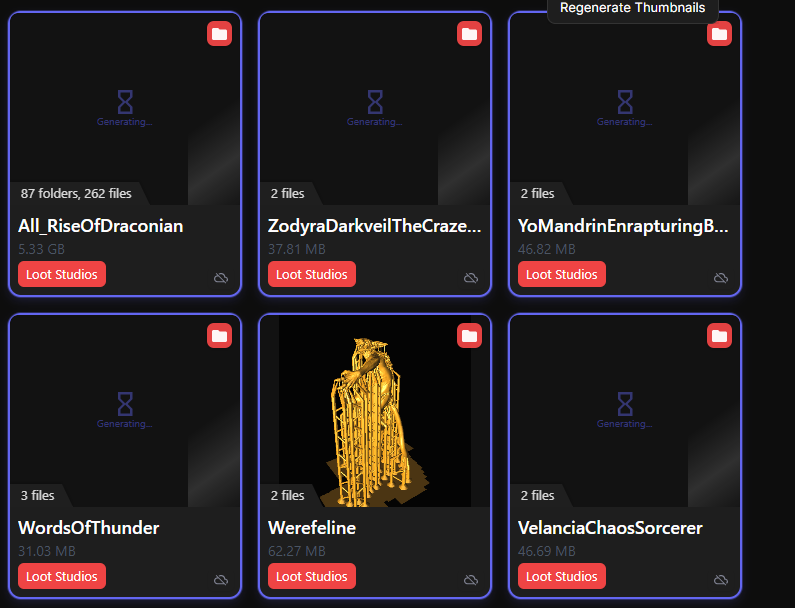
Setting a custom thumbnail
Sometimes the auto render isn’t the shot you want — a painted photo or the artist’s render makes a better card. Select the item, open the thumbnail picker from the detail panel, and either:
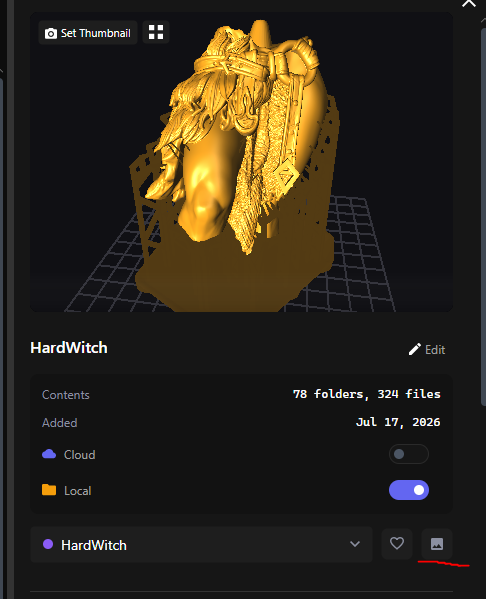
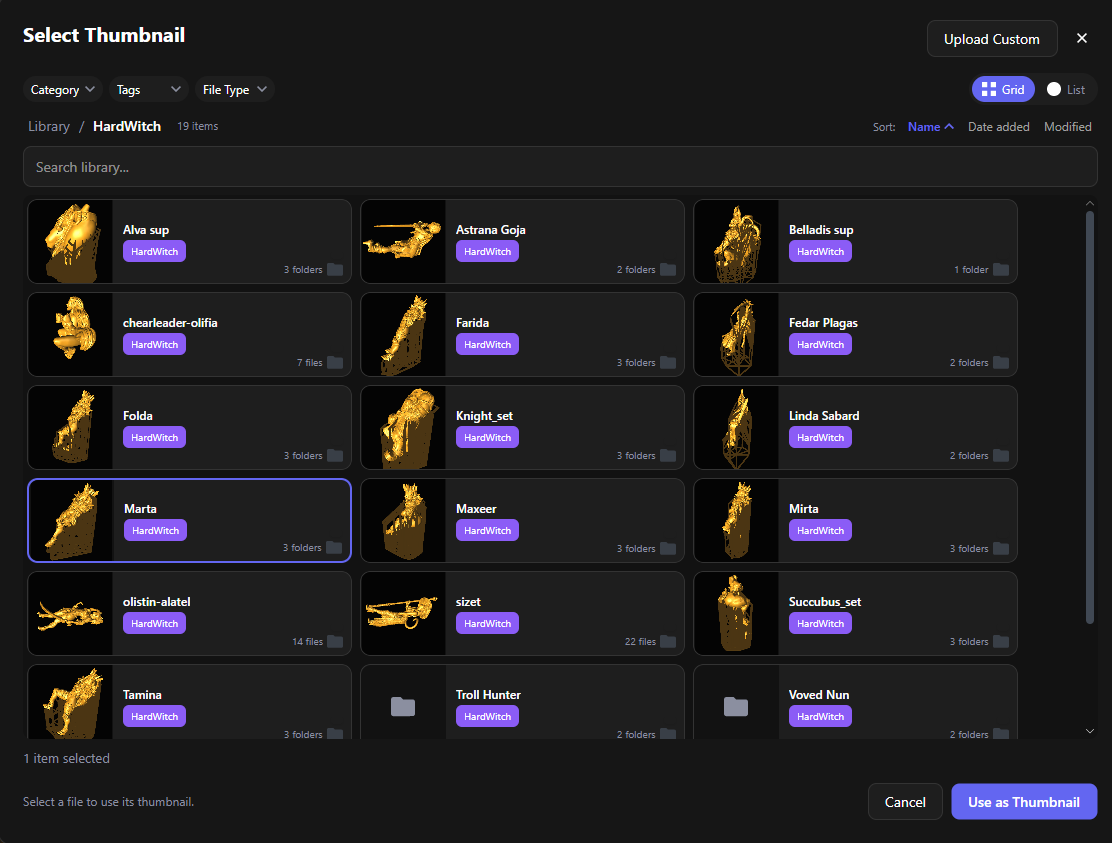
- Upload Custom — pick any image from your PC, or
- Browse your library and pick an existing file, then click Use as Thumbnail
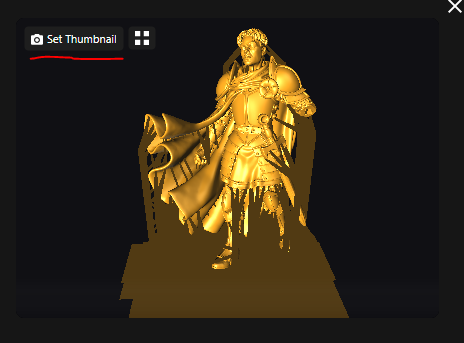
You can also click Set Thumbnail right inside the 3D viewer to capture the exact angle you’re looking at.
Regenerating thumbnails
- One or a few items — right-click → Regen Thumbnail (also on the multi-select toolbar as Regen Thumbs).
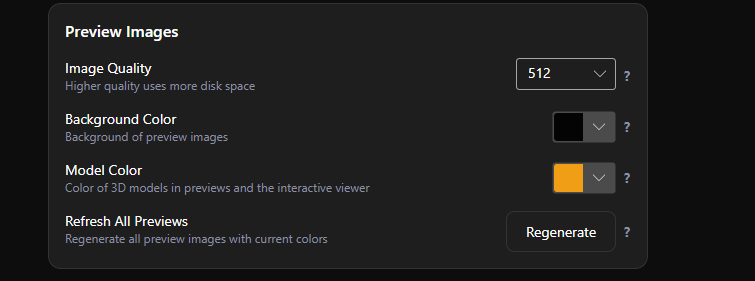
- Everything — Settings → Appearance → Preview Images → Regenerate . It runs in the background; you can keep working.
Related settings
- Settings → Import → Auto-generate thumbnails for imported files — turn this off if you’d rather generate previews manually.
- Settings → Appearance → Preview Images — Change the background and color of your thumbnails! But if you have a massive library know it will probably take a while to generate so many thumbnails in one go!
For the interactive 3D previews behind these thumbnails, see 3D Previews.