Getting Started
Importing your files
Bring your existing model folders into your library.
Updated
The Import dialog
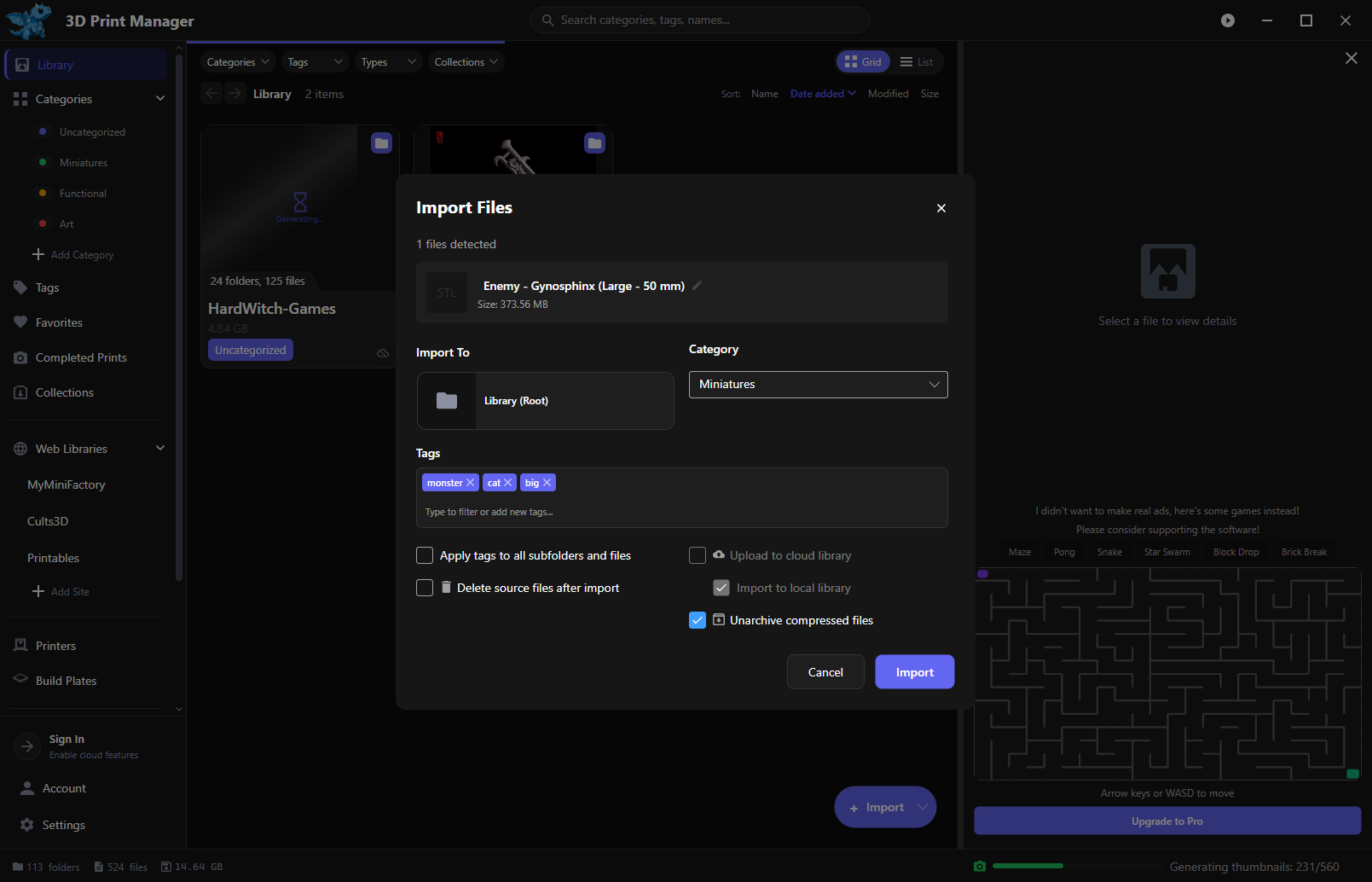
Click Import and choose files or a folder. The import dialog lets you set everything up before anything is copied:
- Import To — pick the destination folder in your library (defaults to the library root). If you have multiple library drives, a drive selector lets you choose which drive the files land on.
- Category — assign a category to the whole import, or pick Add New… to create one on the spot.
- Tags — type to filter existing tags or add new ones; they’re applied to the imported items.
And the options:
- Apply tags to all subfolders and files — pushes your tags down through everything in the import, not just the top level.
- Delete source files after import — turns the copy into a move.
- Upload to cloud library — queue everything for cloud sync as it imports (with Import to local library controlling whether a local copy is kept too).
- Unarchive compressed files — zips and other archives are extracted and imported as folders instead of arriving as a single opaque file.
Drag and drop
Drag files or folders straight from File Explorer into the library view. Same result, fewer clicks.
Drop files into the library folder
Your library lives in a normal folder on disk, and the app watches it. Files you (or another program) drop in there are picked up and imported automatically — archives included. See File Watcher & File Explorer for the details.
What can I import?
More than just STLs: 3D models (STL, OBJ, 3MF, PLY, STEP, glTF, FBX, Blender files, and more), images (PNG, JPG, WebP, SVG…), sliced output (CTB, GOO, Photon Workshop formats, G-code…), and documents (PDF, text, spreadsheets). Everything gets organized together, so a model’s instructions and preview renders stay with the model.
What about thumbnails?
3D previews are generated in the background after import — you’ll see a shimmer placeholder that fills in as each one finishes. Large models take a moment. See Thumbnails for more.