Library
Tags
Flat, unlimited labels for creators, sources, and characteristics.
Updated
Adding tags
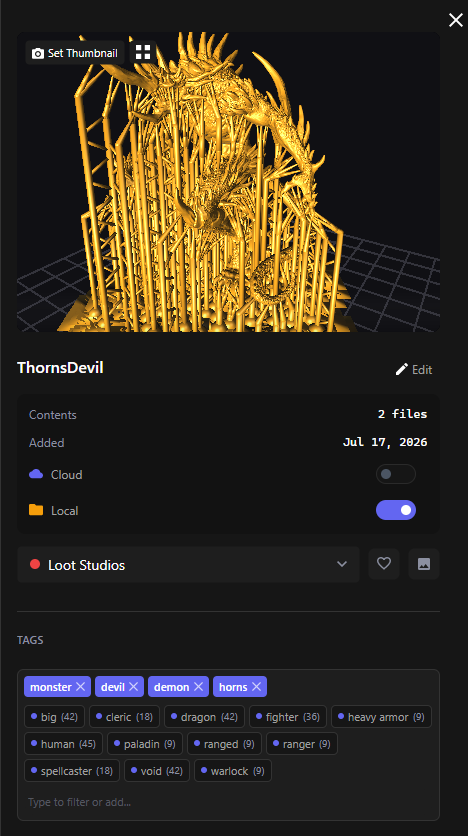
- From the detail panel — the tag picker shows your selected tags as removable chips, your existing tags as clickable buttons, and an inline box to type a new one.
- During import — the Import dialog’s Tags field (“Type to filter or add new tags…”) applies tags to the whole import, with an option to Apply tags to all subfolders and files.
The Tags page
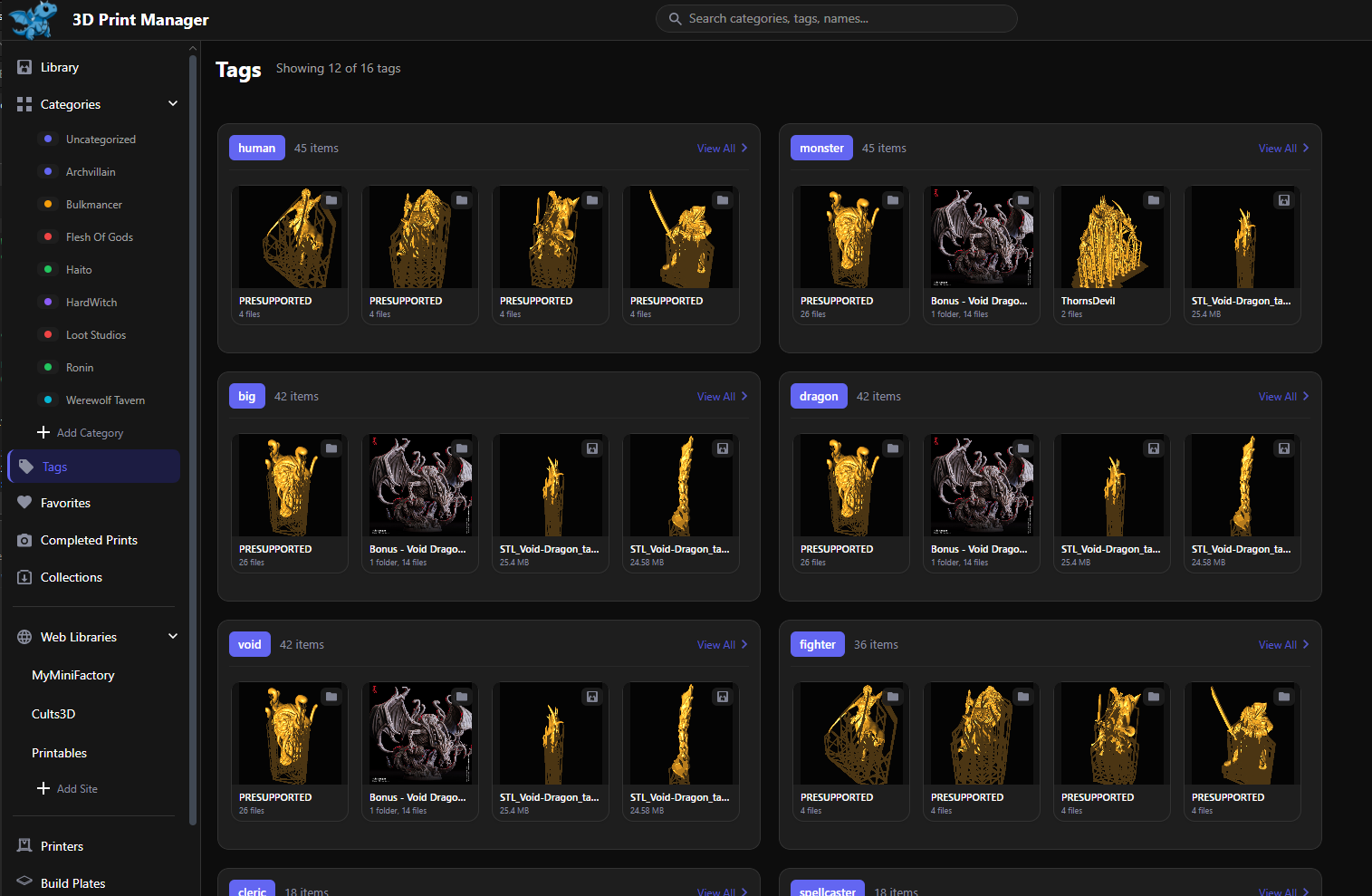
The Tags entry in the sidebar opens an overview: each tag is a card showing its colored chip, item count, and a strip of recent items. More tags load as you scroll.
Managing tags
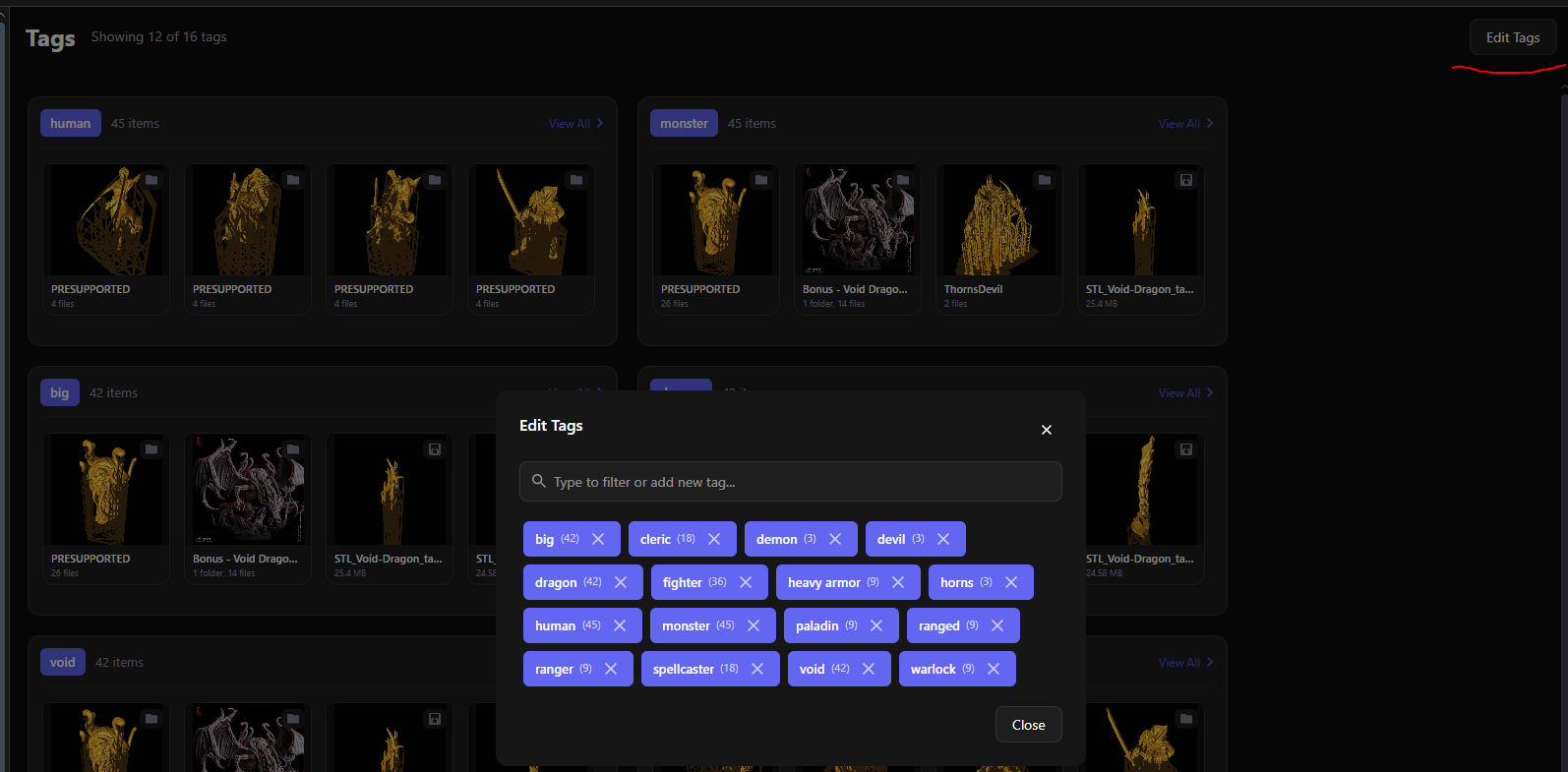
Click Edit Tags on the overview page:
- Type to filter your tags, or type a new name and hit + Add
- Each tag shows its usage count
- Delete a tag with the trash button — it’s removed from every item that had it (the items themselves are untouched)
Tags are also created automatically as you type new ones in any tag picker, so there’s no ceremony to it.
Filtering by tags
The library toolbar’s tag filter dropdown is multi-select — check several tags to combine them, and stack the tag filter with category, file type, and other filters. Tags also work in search: searching for a tag name finds everything carrying that tag.