Printing
Slicers
Open files in your slicer and read sliced-file metadata.
Updated
Telling the app about your slicers
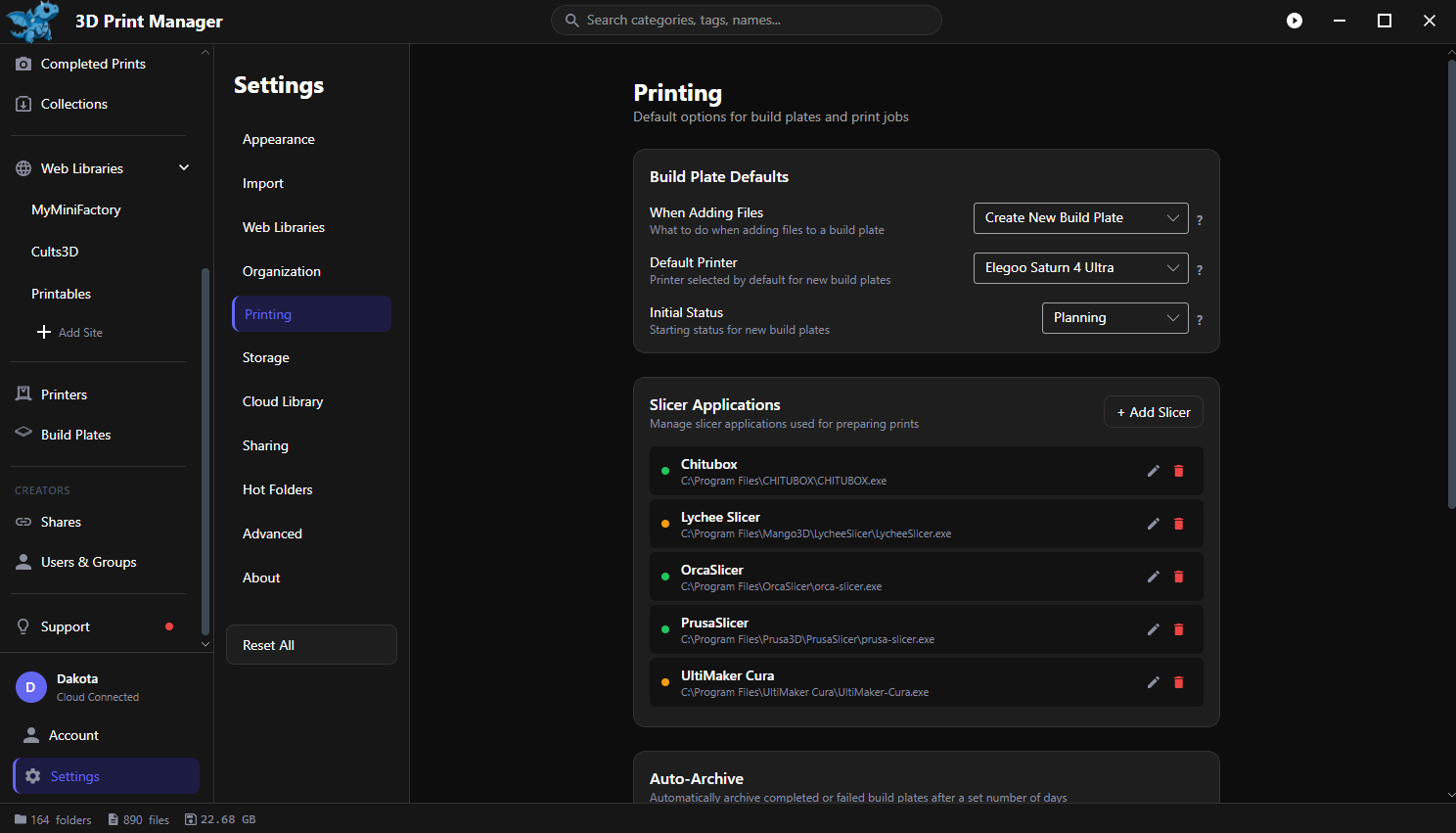
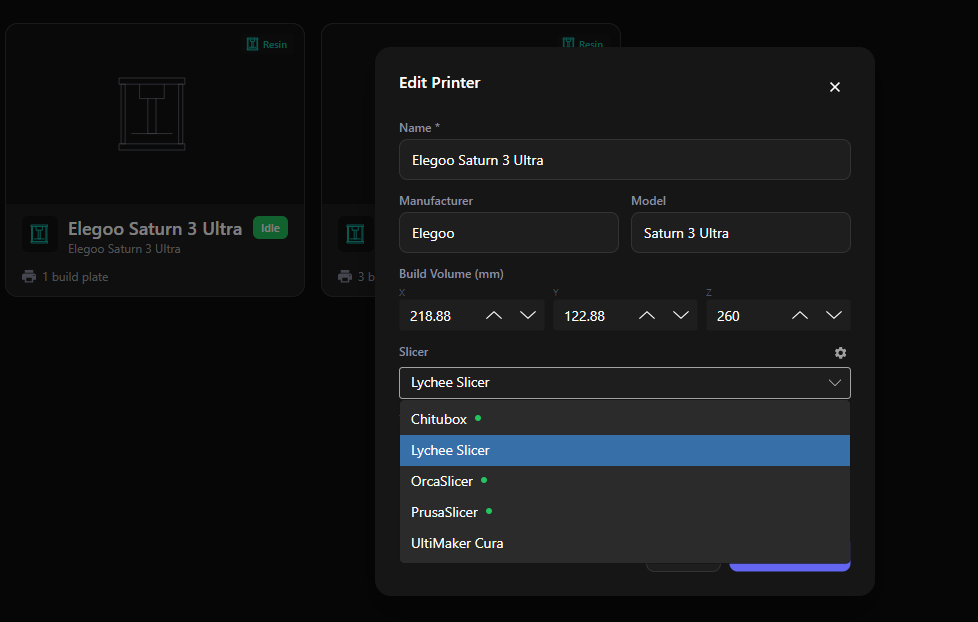
Slicers are configured in Settings (point each entry at the slicer’s program), then assigned per printer in the printer’s Slicer field — a green dot confirms the program was found. Different printers can use different slicers.
Opening files in your slicer
- A build plate’s Open buttons - will use the printers set slicer.
- Open All on a plate’s Source Files — opens every model on the plate
- Open — opens the single file in the associated slicer
- Right-click any attached slicer/print file → Open in Slicer
Everything opens in the slicer configured for that plate’s printer.
Reading sliced files
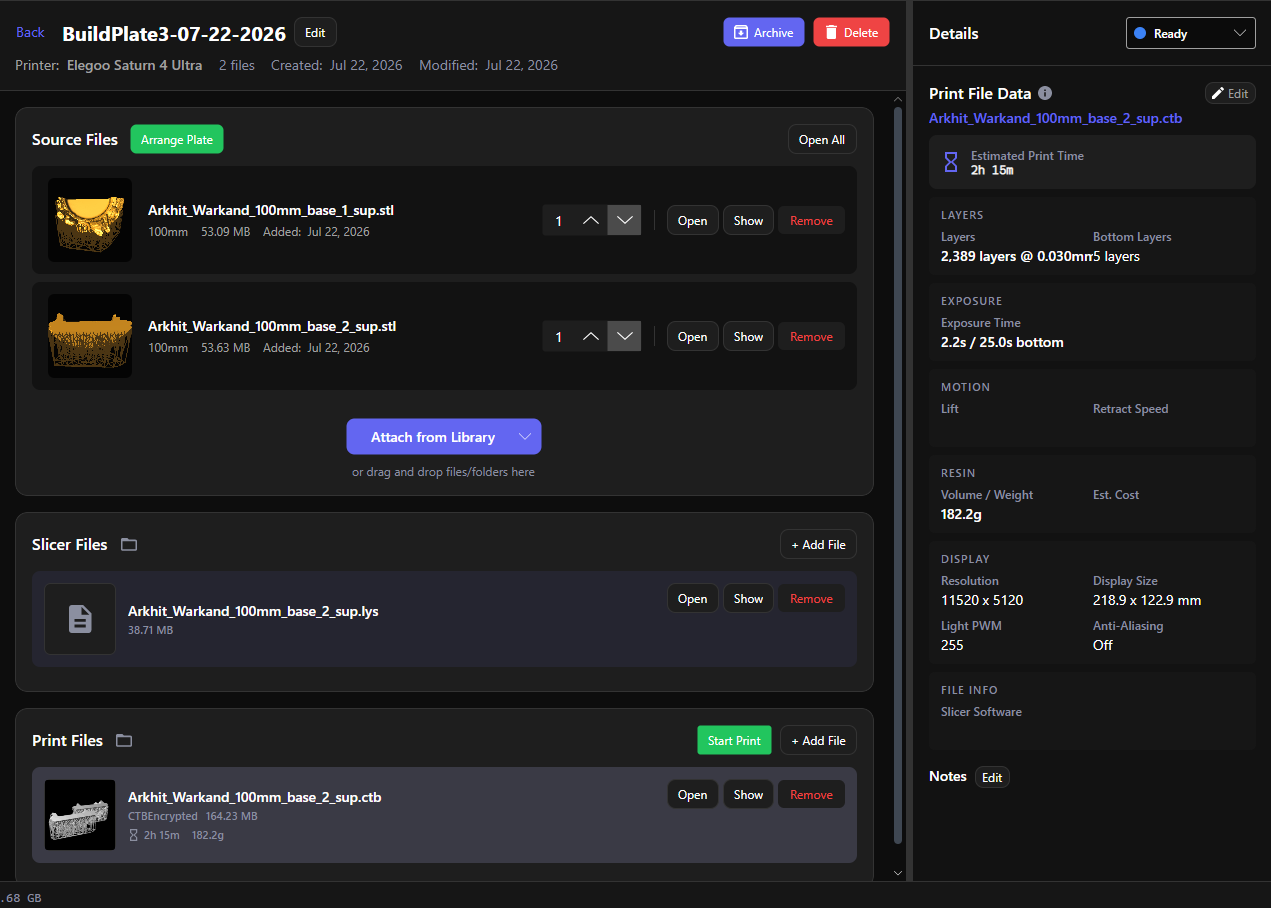
Attach sliced output to a build plate and the app parses its metadata into the Print File Data panel — no need to reopen the slicer to check settings:
- Estimated print time (this also powers the plate’s remaining-time countdown)
- Layer count and bottom layer settings
- Exposure time and light-off delay
- Lift and retract motion settings
- Resin volume, weight, estimated cost, and resin profile
Note on this, I’ve had really mixed results with what which slicers place into the metadata fields of their outputted print file, sometimes the time matches, sometime it doesn’t, at the moment I call the data in the print file data area unreliable. I plan to spend more time on it soon to see if I can. But you can edit some of these fields by clicking the edit button in the top right corner of the print file data panel to correct any mistakes it pulls in if you’d like too.
Supported sliced formats
- Chitubox CTB, Anycubic Photon family (.photon, .pwmo/.pwma/.pwms/.pwmx, .pws)
- Elegoo GOO, Creality CXDLP, Phrozen PHZ/PRZ
- Prusa SL1/SL1S, plus Longer, FlashForge, Anet, and more
G-code and other FDM output files attach to plates just fine — they’re stored and organized, with metadata parsing focused on the resin formats today.
Settings
Setup and adjust your slicer settings in Settings -> Printing -> Slicer Applications.
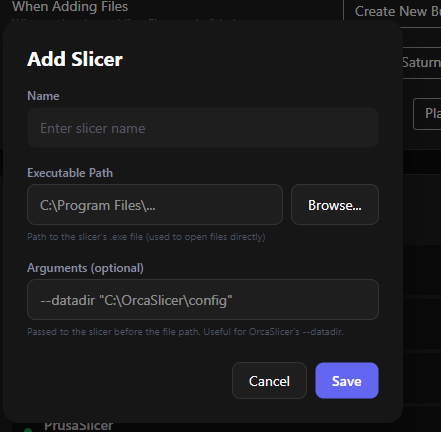
- Add more slicers to your program by locating their exe file and naming them
- If you need to launch them with command arguments, you can set that up here too when adding or editing a slicer.