Printing
Printers
Add your printers from 172 built-in templates or create your own.
Updated
Printers are the anchor for print planning — every build plate belongs to one, and each printer knows its build volume and which slicer to open.
Adding a printer
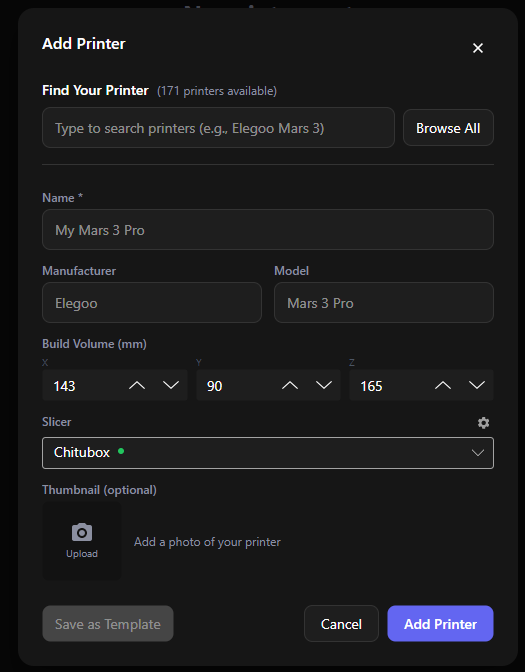
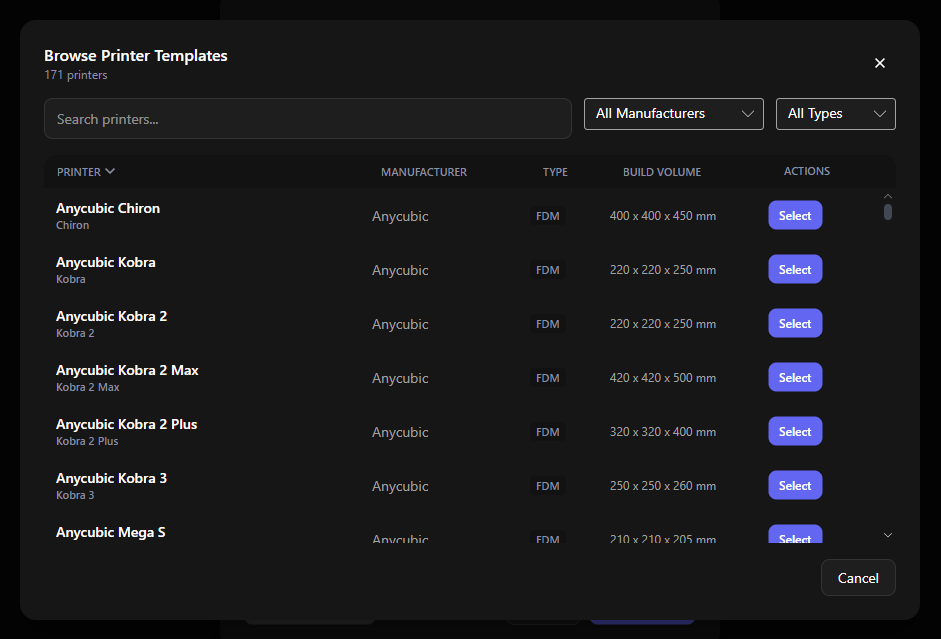
Click + Add Printer. Start typing in the search box (“Type to search printers…”) and pick from the built-in templates — lots of printers with their build volumes and technology (FDM, MSLA, SLA, DLP) prefilled. Prefer to browse? Browse All opens the full template list with manufacturer and type filters.
Then fill in what’s yours:
- Name — whatever you call it (“My Mars 3 Pro”)
- Manufacturer / Model — prefilled from the template
- Build Volume (mm) — X, Y, Z, prefilled from the template but editable
- Slicer — which slicer this printer opens files in (a green dot means the slicer’s program was found)
- Thumbnail — optionally upload a photo of your printer
Custom templates
Printer not in the list, or heavily modded? Fill in the details manually and click Save as Template — it joins your template list with a Custom badge for next time. Deleting a custom template never affects printers already created from it.
The build plate page
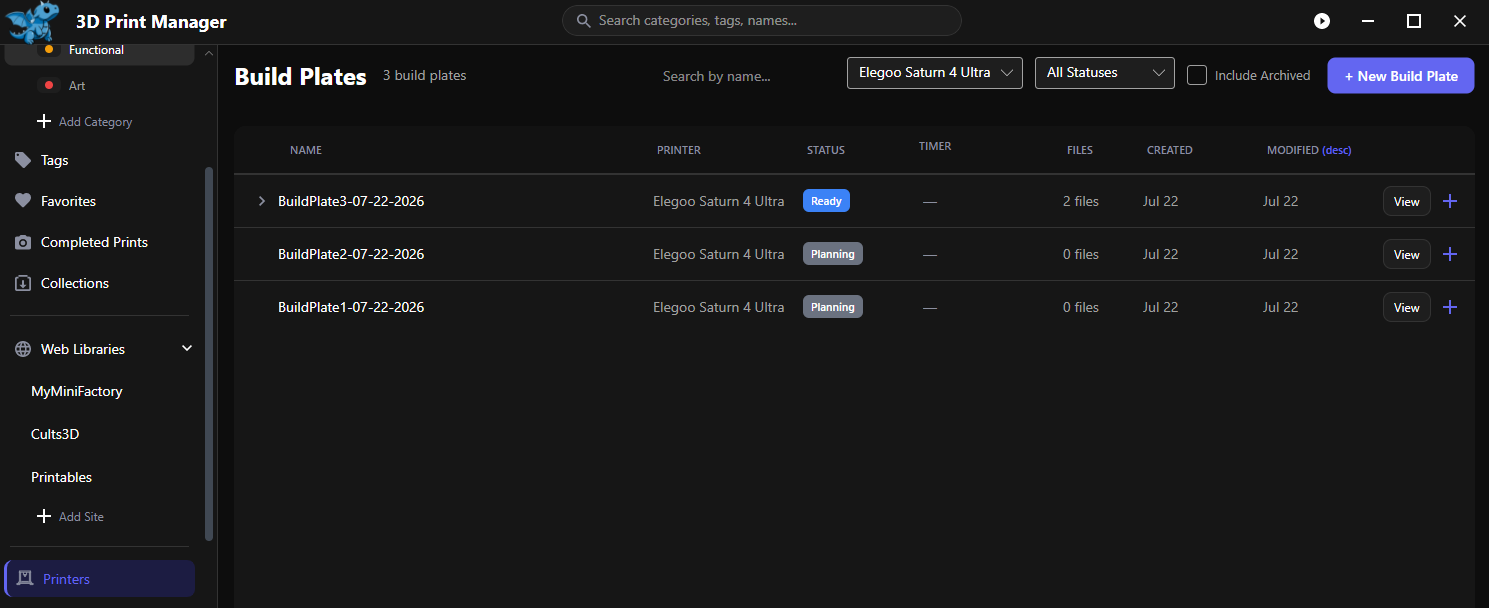
Double click a printer to be taken to the build plates screen filtered for that printers automatically. You can of course adjust the filter if you’d like to see all printers etc etc.
Editing and deleting
Edit a printer any time. Deleting one warns you first if it still has build plates — deleting a printer deletes its build plates too, and that can’t be undone.
Free vs Pro
The free plan includes up to 3 printers; Pro removes the limit.