Printing
Projects
Track a print from build plate through finishing, with photos and notes along the way.
Updated
A project is a container for one piece of work end to end — the build plates you print, the pieces you finish (support removal, priming, painting, whatever your workflow is), and photos of the result. Build plates already track print status; projects pick up where they leave off and carry things through to “done.”
So now we have a larger scope of statuses to manage our workflow with:
- Status — where a project is (Preparing, In Progress, Complete by default)
- Stage — where a piece is in finishing (Not Printed, Printed, Primed, Painted, Done by default)
- Build plates keep their own existing Status (Planning/Ready/Printing/etc.).
Creating a project
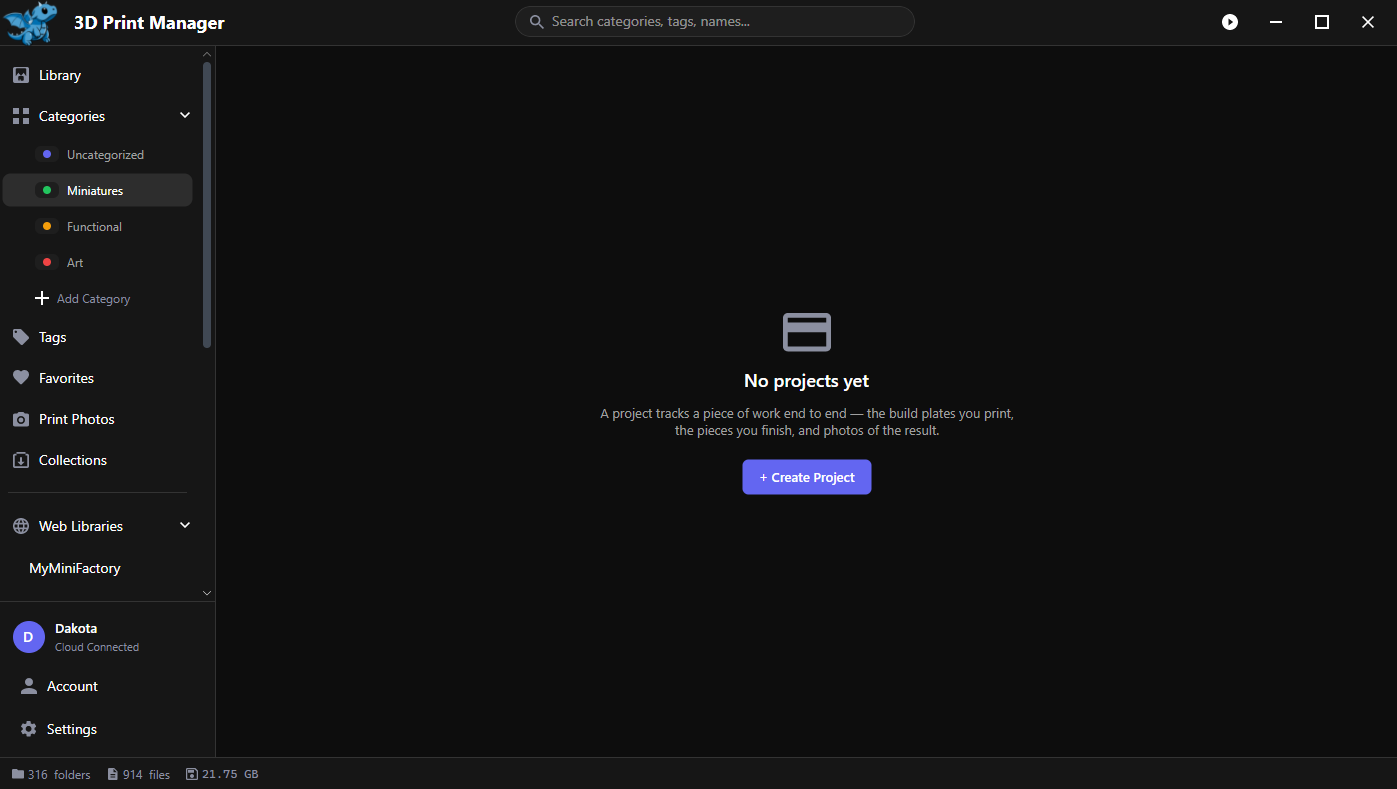
Open Projects in the sidebar and click + New Project (or + Create Project from the empty state) — give it a name and you’re in.
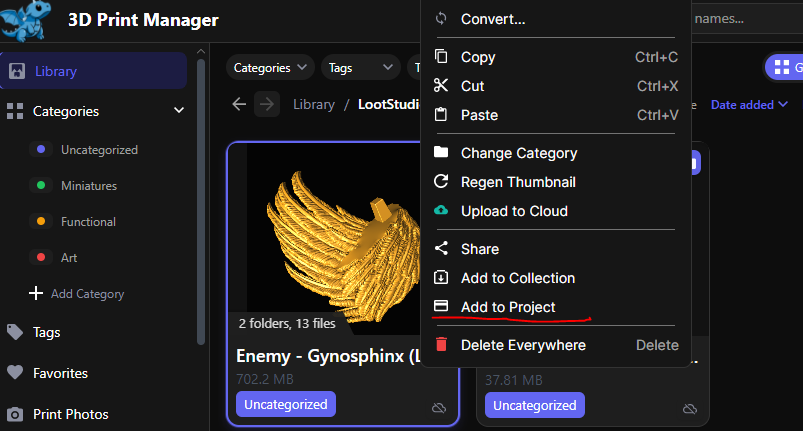
You can also start one from the library: right-click a file, folder, or multi-selection and choose Add to Project. The same dialog is available from a file’s detail panel, in its Projects section, via + Add. Either way you can pick an existing project from a dropdown or type a new project name to create one on the spot. Folders bring along their mesh files (STL/3MF) as pieces; other file types in the folder are skipped.
The overview
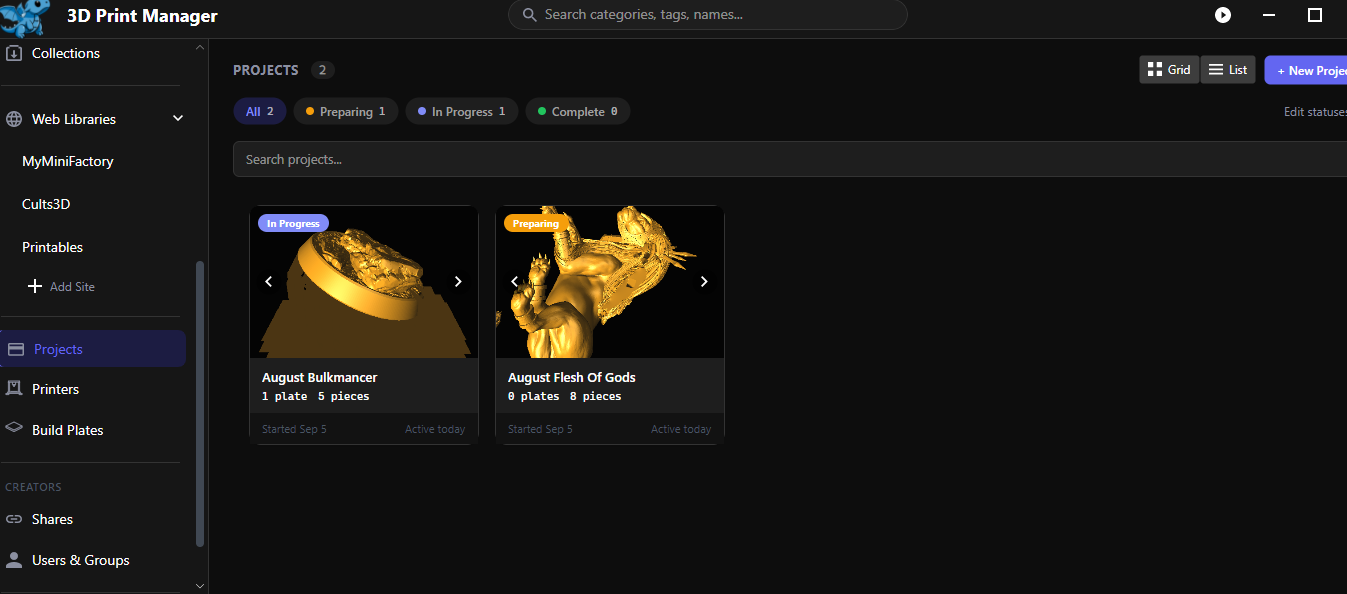
Projects lists everything you’re working on, with a Grid/List toggle, search, and sortable columns in list view. Status filter pills across the top are generated from your own status list, click one to filter the view, or Edit statuses… to jump straight to Settings.
Inside a project
A project has four tabs:
Build Plates — self explanatory but its your build plates! You can create them right from here or attach existing ones etc etc.
Pieces — every trackable unit in the project, filterable by plate and Stage.
Photos — meant for pictures of piece progress but can be any image file, you can link them directly to pieces and see the relationships in your library file details panel.
Other Files — For any other files that you desire to store along side a project
Notes — a free-form text box for anything project-specific (resin, settings, paint recipes);
Where else you’ll see projects
- A file’s detail panel has its own Projects section listing which project(s) it’s a piece of, with a Stage pill and quick navigation
- The Build Plates overview shows a project chip on plate rows
Customizing statuses and stages
Every row (including the defaults) can be renamed, recolored, reordered, and deleted, from Settings → Projects → Project Statuses and Piece Stages. Deleting a status or stage that’s still in use asks where to move the affected projects or pieces first, and the last remaining row in a list can’t be deleted.
Each status can be flagged Counts as completed — projects in a completed status sink to the bottom of the overview and stop counting against your active-project limit. Each stage can be flagged Marks pieces as done — pieces in a done stage count as finished.
Free vs Pro
Free accounts get 1 active project at a time (completed ones don’t count against the limit). Pro removes the limit.