Library
Categories
Hierarchical, one-per-item labels for what a model is.
Updated
Assigning a category
- From the detail panel — select an item and pick from the category dropdown.
- During import — the Import dialog has a Category field, including Add New… to create one on the fly.
- Right-click a folder → Change Category.
The Categories page
The Categories entry in the sidebar opens an overview: each category is a card with its color, item count, and a strip of recent files. Click a category header to drill into everything in it.
The sidebar entry also expands (click the chevron) to list your categories for one-click navigation — right-click any of them to Edit or Delete, or use Add Category at the bottom.
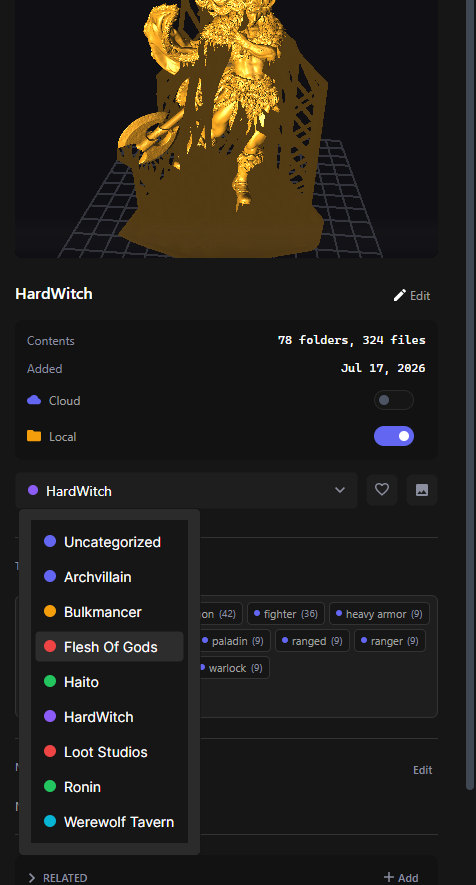
Creating and editing
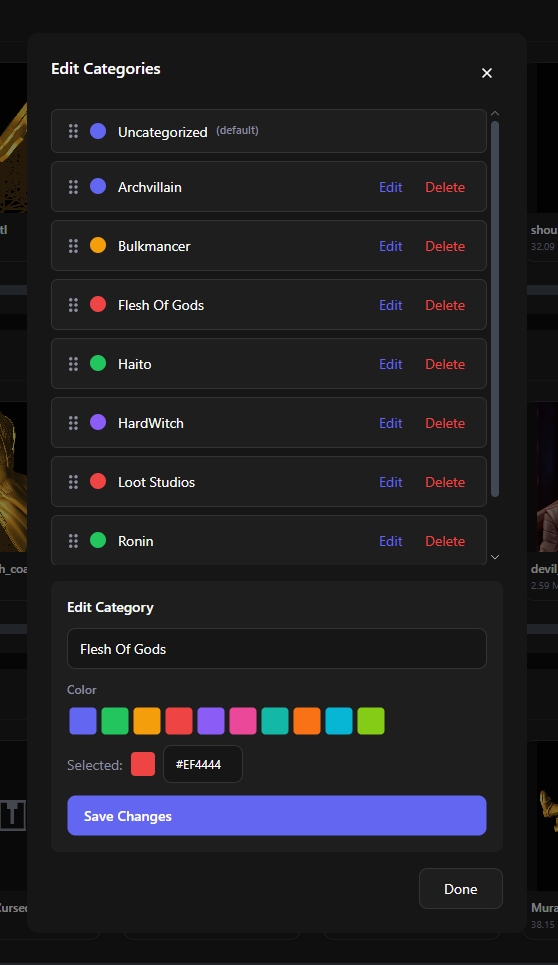
Click Edit Categories on the overview page. From the dialog you can:
- Add a category — name it and pick a Color (the color shows up as dots and card accents everywhere)
- Rename or recolor via Edit
- Delete — if the category still contains items, the app asks where to move them (“Move items to:”) so nothing is left uncategorized by accident
- Reposition the order of categories by dragging them around.
The built-in default category can’t be edited or deleted — it’s where uncategorized items live.
Filtering by category
The library toolbar has a category filter dropdown — check one or more categories to narrow the view. It combines with tag, file type, and other filters. See Library Utilities.